Manual, guides and answers
Everything you need to work with FetchJ – step by step and with pictures.
The complete manual
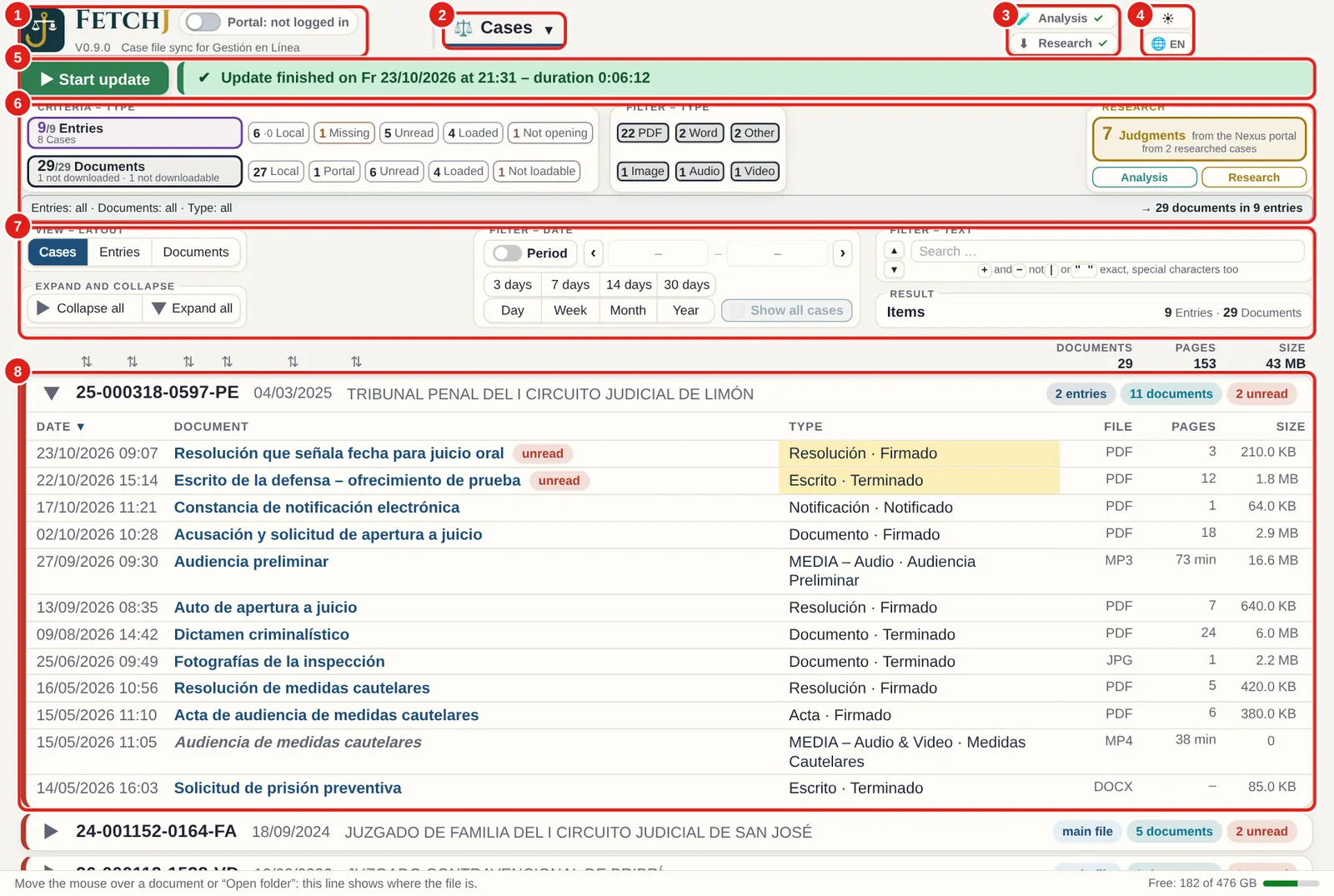
37 chapters, from installation to backup. With pictures of invented data.
Quick guides
First update
Install, log in and first fetch only the case index. Then choose cases and a start date.
See only what is new
Tile “Unread” or “7 days”. Right-click → “Mark as read” to clear old items.
Complete PDF for the hearing
Click the court office name of the case → the complete PDF with contents opens.
Find precedents
Right-click the case → “Research (precedents) …” → “Search and download”.
Create an appointment
Right-click the ruling → “Create appointment …” → Google, Outlook or Windows.
Backup
Page “Backup” → mark cases → “Create backup …” → choose a folder.
Animation: how FetchJ works
A day with the portal
First use of FetchJ
Daily use of FetchJ – everything under control
Frequently asked questions
The browser asks whether it may open FetchJ
Choose “Open” and tick “Always allow”. Then it will not ask again.
Login does not work
Log in completely yourself in the portal window. If the portal says “Vuelva a intentarlo más tarde”, wait 10 to 15 minutes and do not type anything meanwhile.
The portal asks for a new password
The portal asks for it every three months. Set it in the portal window; FetchJ then carries on by itself.
A document is never downloaded
Some documents are not delivered by the portal. FetchJ marks them, tries again and lists them among the documents not downloadable, for the court.
May the screen lock during an update?
Yes, the screen lock does no harm. Just avoid sleep mode (closing the lid) while the update runs.
The first update takes long
With many cases the first time can take a while. You can pause and resume; nothing is downloaded twice. After that it is quick.
How do I get support?
In FetchJ: Help → “Support request”. The package is cleaned before sending. Or write to fetchjudicial@gmail.com.
Does FetchJ know my password?
No. You log in in the portal window. FetchJ never types, reads or stores user name, password or code.
Do my case files go to a server?
No. Your case files stay on your computer. FetchJ reads from the portal and, when you research, from public case-law databases. It never changes anything in the portal, and nothing leaves your computer without your consent: a licence request, a support package or a handover to an AI is only sent with your click.
Do I need computer skills?
No. It installs with a double-click, an assistant guides you through the first start and the manual explains every screen.
What if the portal does not deliver a document?
FetchJ marks it as not downloadable, tries again at the next update and puts it on a list you can give to the court.
Does FetchJ replace the portal or notifications?
FetchJ helps you keep deadlines and notifications in view and in order. It also recognises deadlines and hearings in the documents and suggests them in your calendar – always without guarantee: you check the source document and mark each deadline as “Verified”.
Which computers does it run on?
Windows 10 and 11. Versions for Mac (macOS) and Android tablets are in development; on the download page you can ask to be notified. FetchJ tells you about new versions; they install with one click.